
Amazon Shipping Label Crop
A4 to 4×6 with SKU Sort
Q Crop Label is a free, in-browser Amazon shipping label crop tool that converts A4 PDFs into clean 4×6 inch thermal labels in seconds.
Need to Remove Pages or Crop Manually?
Click below to use our advanced tool to remove pages from the PDF or to crop specific areas.
Upload your PDFs
Drag & drop or click anywhere in this box to upload
Output Options
Keep Invoice
Include tax invoice page
Add Picklist
Add product summary sheet
Merge PDF
Single file for all labels
Sorting Engine
Original Order
Keep uploaded file order
Sort by SKU
Alphabetical product sort
What is the Amazon Shipping Label Crop Tool?
Amazon Seller Central exports shipping labels as A4 PDFs. This tool removes packing slips and crops labels to perfect 4×6 inch size for thermal printers.
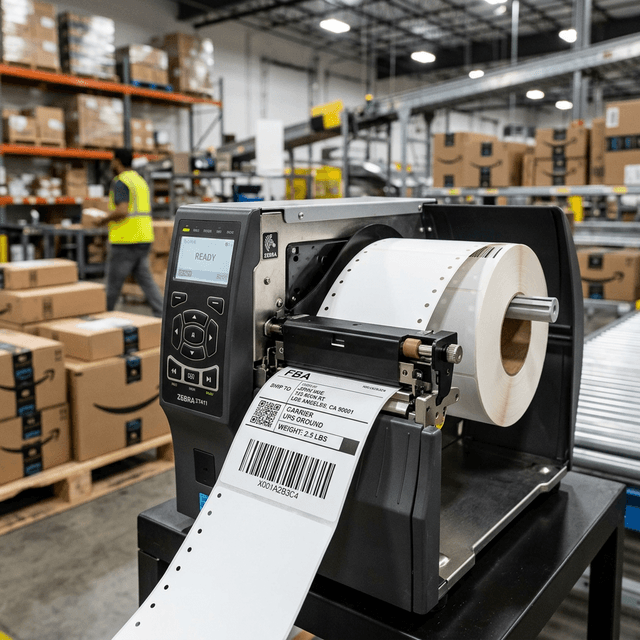
Amazon Label Formats: FBA vs. Easy Ship vs. Self-Ship
Amazon India generates shipping labels differently depending on the fulfillment method, but every one of them lands in your downloads folder as an A4 PDF that is far too large for a thermal roll. FBA (Fulfilled by Amazon) labels carry an FNSKU barcode alongside the shipping barcode, so cropping has to keep both scannable. Easy Ship and self-ship (Merchant Fulfilled) labels instead print the courier AWB and a tax invoice stacked on the same page. This tool detects the label region by content — not by fixed coordinates — so it correctly separates FBA, Easy Ship, and self-ship labels from the invoice or packing slip beneath them, whichever format you download.
Why Amazon Labels Print Oversized (or Too Small)
Most sellers hit this problem the first time they print an Amazon label on a 4×6 thermal printer without cropping first:
- "Fit to page" shrinks everything. Sending the full A4 PDF to a 4×6 roll and letting the printer driver scale it down makes the barcode too small for courier scanners to read reliably.
- The tax invoice prints on the same roll. Without removing it, you waste a second label-sized sticker on invoice text no courier needs on the package.
- Bulk downloads mix multiple orders per PDF. A 50-label batch file needs every page cropped consistently, not just the first one.
Cropping — not scaling — is what fixes this, because it keeps the barcode at its original resolution instead of shrinking it.
How to Crop an Amazon Shipping Label to 4×6 (Step by Step)
- In Amazon Seller Central, go to Manage Orders and download the shipping label PDF (FBA, Easy Ship, or self-ship — single order or bulk).
- Drag the PDF into the upload box above. Processing happens entirely in your browser, so order data never leaves your device.
- Toggle Keep Invoice if you need the tax invoice retained, or Add Picklist to generate a packing summary sheet for your team.
- Click Process Amazon PDF and download the result — each page is now a clean 4×6 label with a full-resolution barcode.
- Print at 100% / Actual Size with paper size set to 100 × 150 mm. Avoid "Fit to page."
Amazon Label Crop — Frequently Asked Questions
Does this work for both FBA and Easy Ship labels?
Yes. The tool detects the label region by content rather than fixed coordinates, so it correctly crops FBA labels (with the FNSKU barcode), Easy Ship labels, and self-ship/Merchant Fulfilled labels — all in the same free tool.
Will cropping affect the barcode's scannability?
No. Cropping only removes the surrounding white space and invoice text; it does not resize or recompress the barcode itself, so the AWB and FNSKU barcodes stay at full resolution and scan the same as the original.
Can I remove the tax invoice from bulk label PDFs?
Yes. Leave the "Keep Invoice" toggle off and every page in your batch download will be cropped to just the shipping label, with the invoice page automatically dropped.
Does it work for bulk downloads with 50+ orders?
Yes. Upload the full bulk PDF from Seller Central and every label inside it is detected and cropped individually — there's no per-file or daily limit.
Also Available for Other Platforms
We support all major e-commerce platforms in India