Everything Indian Amazon sellers need to know about FBA label requirements — sizes, formats, placement rules, and how to avoid rejection at fulfillment centers.
Why Amazon FBA Labeling Matters
Amazon's fulfillment centers process millions of packages daily. Their scanning systems are highly automated, and they depend on accurate, readable labels to route products correctly. If your labels don't meet Amazon's standards, your shipment can be:
- Rejected at the fulfillment center — items returned to you at your cost
- Relabeled by Amazon — with a per-unit fee of ₹20-30 charged to your account
- Lost or misrouted — leading to inventory discrepancies and customer complaints
Understanding and following Amazon's labeling requirements from day one saves money, prevents delays, and protects your seller rating.
Types of Amazon FBA Labels
1. FNSKU Labels (Product Labels)
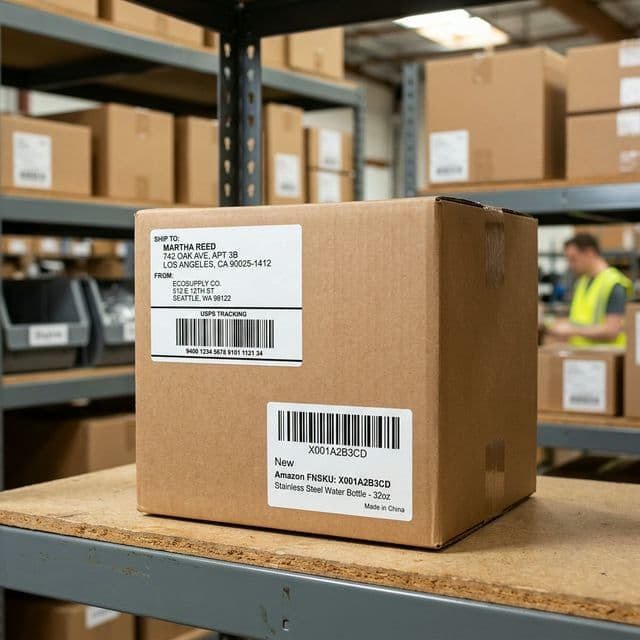
FNSKU (Fulfillment Network Stock Keeping Unit) is Amazon's unique identifier for your product. Every unit you send to Amazon's warehouse must have an FNSKU label.
Key requirements:
- Size: 1" x 2" or 1" x 3" (25mm x 50mm or 25mm x 75mm)
- Must cover any existing manufacturer barcode (UPC/EAN)
- Must be scannable with a barcode reader
- Print on white, non-reflective label stock
- Text and barcode must be crisp and high-contrast
Common FNSKU mistakes:
- Printing on glossy or reflective labels — scanners can't read them
- Barcode is too small or has low resolution — print at minimum 300 DPI
- Placing the label over a curved surface or box seam — it must be flat
2. Shipping Labels (Box Labels)
When you create a shipping plan in Seller Central, Amazon generates shipping labels for each box in your shipment.
Key requirements:
- Size: Standard 4x6 inches (100mm x 150mm) for thermal printers
- One unique label per box — never reuse or duplicate
- Must include the FBA shipment ID, destination fulfillment center code, and carrier tracking barcode
- Place on a flat surface of the box, not over seams or edges
3. Pallet Labels (For Large Shipments)
If you ship palletized loads, Amazon requires additional pallet labels. Each pallet needs 4 labels — one on each side. These are less common for small Indian sellers but important as you scale.
How to Download Amazon FBA Labels
From Seller Central
- Go to Inventory → Manage FBA Shipments
- Select your shipment
- Under Shipment Contents, click Print Item Labels for FNSKU labels
- Under Shipping, click Print Box Labels for shipping labels
- Choose your label format:
- Thermal — direct 4x6 format (recommended if you have a thermal printer)
- A4 — multiple labels per A4 page (requires cropping before thermal printing)
The A4 Label Problem
Many Indian sellers download labels in A4 format because their printer was initially set up for A4. The A4 PDF contains the shipping label embedded in a larger page with white margins.
When you try to print this on a 4x6 thermal printer:
- The entire A4 page gets scaled down to fit 4x6
- The label becomes tiny and unreadable
- Barcodes become too small to scan
Solution: Use Q Crop Label to automatically extract the label area from the A4 PDF and convert it to a clean 4x6 format. Upload the A4 PDF, and the tool detects the label boundaries, removes excess white space, and outputs a perfectly sized thermal label.
Amazon FBA Label Size Specifications
| Label Type | Size (inches) | Size (mm) | DPI Required |
|---|---|---|---|
| FNSKU (Product) | 1" x 2" or 1" x 3" | 25 x 50 or 25 x 75 | 300 DPI |
| Shipping (Box) | 4" x 6" | 100 x 150 | 203 DPI |
| Pallet | 4" x 6" | 100 x 150 | 203 DPI |
Label Placement Rules
Amazon has strict rules about where labels go:
FNSKU Labels
- Place on a flat surface of the product or its packaging
- Must cover any existing UPC/EAN barcode
- Do not wrap around edges or curves
- One FNSKU per unit (unless multi-pack)
Shipping Box Labels
- Place on a flat surface, not on a seam or fold
- Do not place under tape — the tape can make the barcode reflective and unscannable
- Each box must have its own unique label
- If a box label is damaged during transit, the box may be rejected
Printing Best Practices for Amazon FBA Labels
Thermal Printer Settings
- Set paper size to match your label stock (4x6 for shipping, 1x2 or 1x3 for FNSKU)
- Print at Actual Size or 100% — never use "Fit to Page"
- Set print darkness/density to medium-high (usually 7-10 on a 1-15 scale)
- Use direct thermal labels of appropriate quality — avoid ultra-cheap rolls that fade quickly
Before Printing Checklist
- Verify the shipment ID on the label matches your Seller Central shipment
- Check that FNSKU barcodes are complete (not cut off)
- Ensure labels are not mirrored or inverted
- Test scan with your phone's barcode scanner app before applying to products
Quality Control
After printing, always:
- Pick 2-3 random labels from the batch
- Scan them with a barcode reader or phone app
- Verify the FNSKU matches the correct product
- Check that text is readable at arm's length
Common Labeling Mistakes That Cause FBA Rejection
1. Wrong FNSKU on Products
If you mix up FNSKU labels between products, Amazon will either reject the shipment or assign the wrong product to the wrong listing. Always double-check product-label matches.
2. Barcode Too Small After Printing
This happens when A4 labels are printed on 4x6 paper without proper cropping. The fix is simple: crop the label to 4x6 before printing.
3. Labels Printed on Glossy Paper
Amazon's infrared scanners struggle with reflective surfaces. Always use matte or semi-gloss direct thermal labels.
4. Multiple Products Under One FNSKU
Each unique product variation (size, color) needs its own FNSKU. Labeling a Medium Blue shirt with a Large Red FNSKU will cause inventory chaos.
5. Expired or Old Labels
If you reprint labels from a previous, canceled shipment plan, those labels are invalid. Always generate fresh labels from your current shipment plan.
Amazon Easy Ship vs FBA Labels
If you use Amazon Easy Ship (common in India), the label format is different:
- Easy Ship labels are generated after the customer places an order
- They include the customer's address and Amazon's tracking barcode
- Format is similar but the layout may differ from FBA shipping labels
Q Crop Label supports both Easy Ship and FBA label formats — the auto-detection works regardless of which Amazon fulfillment method you use.
Conclusion
Getting Amazon FBA labeling right is non-negotiable. It protects your shipments, prevents costly relabeling fees, and keeps your seller account in good standing.
The key points: use the right label sizes, print at actual size on quality thermal paper, place labels correctly, and always verify scannability before shipping. If you are downloading A4 format labels, always crop them to 4x6 using a dedicated tool before printing on your thermal printer.
About Q Crop Label
Q Crop Label helps 100,000+ Indian e-commerce sellers optimize their shipping workflow. We write about thermal printing, label management, and practical tips to help Amazon, Meesho, and Flipkart sellers save time and money on every order.