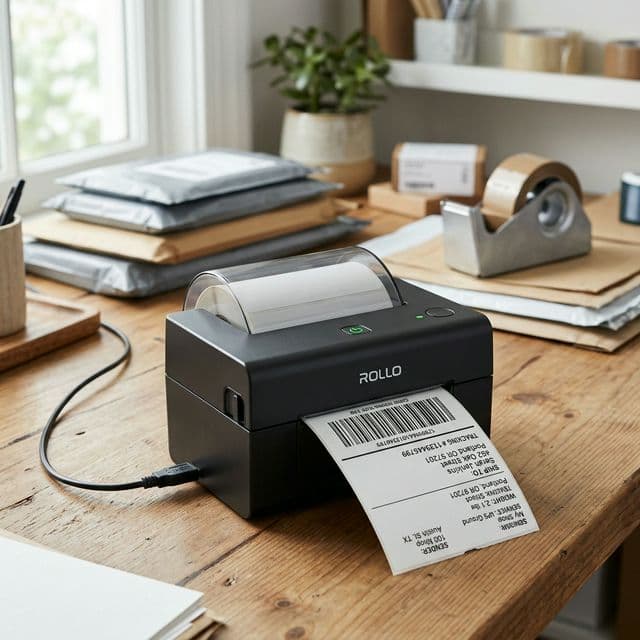
Setting up a thermal printer for the first time? This complete guide walks you through everything — from unboxing to printing your first perfect 4x6 shipping label.
Why Thermal Printers Are Essential for Indian E-commerce Sellers
If you are selling on Amazon, Meesho, or Flipkart and still printing shipping labels on a regular inkjet or laser printer, you are wasting time, money, and paper every single day.
Thermal printers use heat to print directly onto special label paper. There is no ink, no toner, and no cartridges to replace. The labels are waterproof, smudge-proof, and scannable even in rough Indian weather conditions — rain, humidity, and heat.
For sellers processing more than 10-15 orders per day, a thermal printer pays for itself within 2-3 months through savings on ink and paper alone.
Choosing the Right Thermal Printer
Direct Thermal vs Thermal Transfer
There are two types of thermal printers:
- Direct Thermal: Uses heat-sensitive paper. No ribbon needed. Perfect for shipping labels that are temporary (stuck on packages). This is what most e-commerce sellers need.
- Thermal Transfer: Uses a ribbon to transfer ink onto labels. Better for permanent labels like product barcodes on retail shelves. More expensive and unnecessary for shipping.
Recommendation for Indian sellers: Go with a direct thermal printer. It is cheaper, simpler, and ideal for shipping labels.
Popular Models in India
| Printer | Price Range | Best For |
|---|---|---|
| TVS LP 46 Lite | ₹4,000-5,000 | Budget sellers, low volume |
| Xprinter XP-460B | ₹5,000-6,000 | Mid-volume sellers, good build quality |
| TSC TE244 | ₹8,000-10,000 | High volume, durable |
| Zebra GK420d | ₹12,000-15,000 | Premium, very reliable |
For most Indian e-commerce sellers doing 20-100 orders per day, the Xprinter XP-460B or TVS LP 46 offers the best value.
Step-by-Step Setup Guide
Step 1: Unboxing and Physical Setup
When you receive your thermal printer:
- Remove all packing materials and protective tape
- Connect the USB cable to your computer (most thermal printers come with USB-A cables)
- Plug in the power adapter
- Do NOT turn on the printer yet — install drivers first
Step 2: Driver Installation
Most thermal printers require a specific driver:
- Visit the manufacturer's website and download the latest driver for your printer model
- For Windows: Run the installer and follow the on-screen instructions
- Once installed, the printer should appear in Settings → Printers & Scanners
- If the printer doesn't appear, try a different USB port or restart your computer
Tip: Some Chinese-made printers (like Xprinter) may require you to download drivers from their official website rather than relying on Windows auto-detection.
Step 3: Loading Label Paper
This is where many sellers make mistakes:
- Open the printer cover or label compartment
- Place the label roll so that the labels face upward (printable side facing the print head)
- Pull the label paper through the guides, ensuring it sits straight and centered
- Close the cover and press the Feed button to advance one label
- If the label doesn't feed correctly, adjust the paper guides to match your label width
Step 4: Setting Paper Size
This is the most critical setting:
- Go to Settings → Printers & Scanners → Your Printer → Printing Preferences
- Set paper size to 4x6 inches (or 100mm x 150mm)
- Set orientation to Portrait
- Set print quality to 203 DPI (standard for shipping labels)
- Disable any "Fit to Page" or "Scale to Fit" options
Step 5: Test Print
Before printing actual shipping labels:
- Open any PDF file on your computer
- Select your thermal printer
- Print at Actual Size or 100% scale
- Check that the output is centered, clear, and the right size
Preparing Shipping Labels for Thermal Printing
The A4-to-4x6 Problem
Here's the issue every Indian seller faces: Amazon, Meesho, and Flipkart all generate shipping labels in A4 (or Letter) format. When you send an A4 PDF to a 4x6 thermal printer, one of two things happens:
- The printer tries to shrink the entire A4 page to fit 4x6 — making everything tiny and unreadable
- The printer prints at actual size — cutting off most of the label
The solution: Use a label cropping tool like Q Crop Label to extract just the label portion from the A4 PDF and convert it to a clean 4x6 format before printing.
Workflow for Each Platform
Amazon Labels:
- Download labels from Seller Central → Manage Orders
- Upload to Q Crop Label → Auto-crop
- Download and print at 100%
Meesho Labels:
- Download from Meesho Supplier Panel → Orders
- Upload to Q Crop Label → Auto-crop (optimized for Meesho format)
- Print directly on thermal printer
Flipkart Labels:
- Download from Flipkart Seller Hub → Shipments
- Upload to Q Crop Label → Auto-crop
- Print at actual size
Common Troubleshooting Issues
Labels Printing Too Small
Cause: "Fit to Page" is enabled, or paper size is set to A4 instead of 4x6. Fix: Set paper size to 4x6 in printer preferences and disable any scaling options.
Blank Labels Coming Out
Cause: Label roll is loaded upside down (non-printable side facing the print head). Fix: Flip the roll and reload. The printable side should face upward/toward the print head.
Barcode Not Scanning
Cause: Print density is too low, or the label was scaled down. Fix: Increase print density/darkness in printer settings. Ensure labels are printed at 100% scale using properly cropped PDFs.
Lines or Streaks on Labels
Cause: Dirty print head. Fix: Turn off the printer, open the cover, and gently clean the print head with an isopropyl alcohol wipe. Let it dry completely before closing.
Labels Feeding Continuously
Cause: The printer doesn't detect gaps between labels. Fix: Run the printer's auto-calibration (usually by holding the Feed button for 5 seconds while turning on the printer). This teaches the printer to detect label gaps.
Maintenance Tips for Long Printer Life
- Clean the print head every 500 labels or weekly, whichever comes first
- Store label rolls in a cool, dry place — heat-sensitive paper can discolor in direct sunlight
- Use quality labels — ultra-cheap rolls can leave adhesive residue on the print head
- Don't force paper jams — turn off the printer, open the cover, and gently remove jammed paper
- Keep firmware updated — check the manufacturer's website periodically for updates
Conclusion
Setting up a thermal printer is a one-time investment of 30-60 minutes that saves you hours every week. Combined with a label cropping tool to handle the A4-to-4x6 conversion, thermal printing becomes the fastest, most reliable way to process shipping labels for your e-commerce business.
Whether you are selling on Amazon, Meesho, or Flipkart — or all three — a properly configured thermal printer is the backbone of an efficient packing station.
About Q Crop Label
Q Crop Label helps 100,000+ Indian e-commerce sellers optimize their shipping workflow. We write about thermal printing, label management, and practical tips to help Amazon, Meesho, and Flipkart sellers save time and money on every order.