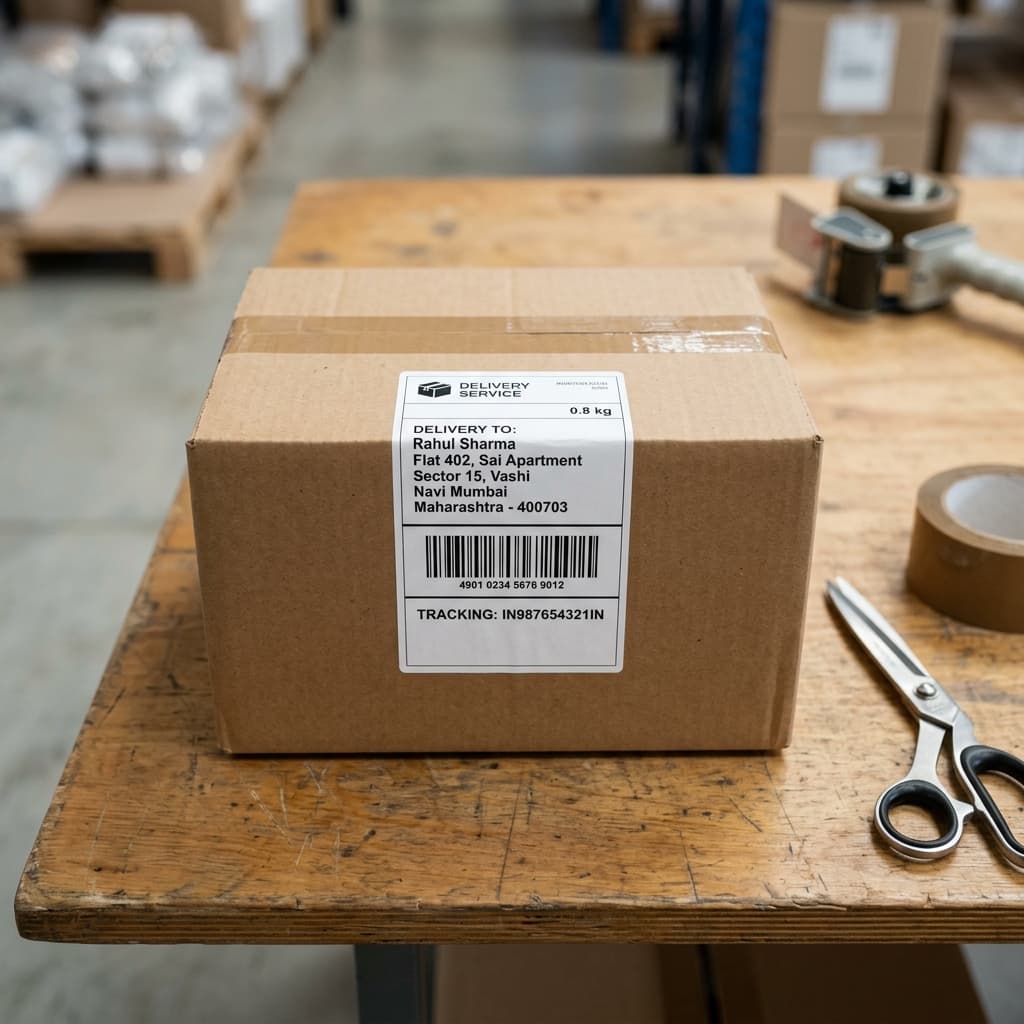
If your Amazon Easy Ship or FBA labels are printing with massive borders or cutting off the customer address, here is a step-by-step crop guide for Indian sellers.
The Challenge for Amazon India Sellers
Whether you sell via Amazon Easy Ship or FBA (Fulfillment by Amazon), shipping labels are crucial. Amazon provides package slips in A4 format. When you send these PDFs to a standard 4x6 thermal sticker printer, the scaling goes completely wrong:
- The barcode lines get compressed, leading to scan failures at Amazon logistics hubs.
- The product name, SKU details, and customer address are either too small to read or get completely cut off.
In India's highly competitive e-commerce market, shipping errors lead to high return rates and poor account health. That is why you need a quick, automated tool to resize and crop Amazon labels.
Why You Shouldn't Use Snipping Tool / Manual Cropping
When you have 50+ orders to dispatch daily, manually taking screenshots of each label is a nightmare:
- It is too slow: It adds minutes of manual work to every single order.
- Inaccurate dimensions: Hand-cropped screenshots are rarely exactly 4x6 inches, resulting in stretched or blurry prints.
- Scale issues: Screen grabs reduce the resolution of the barcode, making it difficult for laser scanners to read.
Step-by-Step: Resizing Amazon Labels to 4x6 Inches
Using Q Crop Label, you can automate the process completely:
Step 1: Download your Amazon Shipping Label PDF
Log in to Amazon Seller Central, go to your manage orders tab, select the shipments, and download the shipping label PDF.
Step 2: Upload to Q Crop Label
Go to Q Crop Label and drag your downloaded PDF into the designated area.
Step 3: Choose Amazon Optimization
Select the "Amazon" template. The tool is pre-programmed to find the exact margins of Amazon Easy Ship and FBA labels.
Step 4: Crop, Download and Print
Click "Crop" and download your formatted PDF. Open the PDF, select your 4x6 thermal printer, set the print scale to "Actual Size" (or 100%), and print.
Top Tips for Perfect Amazon Printing
- Keep Your Printer Calibration Updated: Ensure your printer is calibrated for 4x6 thermal stickers so the labels print exactly in the center.
- Use High-DPI Print Settings: Set your print resolution to at least 203 DPI (dots per inch) for clear barcode printing.
- Use Q Crop Label: It is 100% free, runs in your browser, and requires no downloads or registration.
Streamline your Amazon packing station and ensure 100% barcode readability with Q Crop Label!
About Q Crop Label
Q Crop Label helps 100,000+ Indian e-commerce sellers optimize their shipping workflow. We write about thermal printing, label management, and practical tips to help Amazon, Meesho, and Flipkart sellers save time and money on every order.