Everything Flipkart sellers need to know about shipping labels — from downloading to printing on thermal printers, with fixes for common issues.
If you already have a label that won't print right, our free Flipkart label crop tool converts the A4 Seller Hub PDF into a 4x6 thermal label in seconds — the rest of this guide explains everything around it.
Understanding Flipkart's Shipping Label System
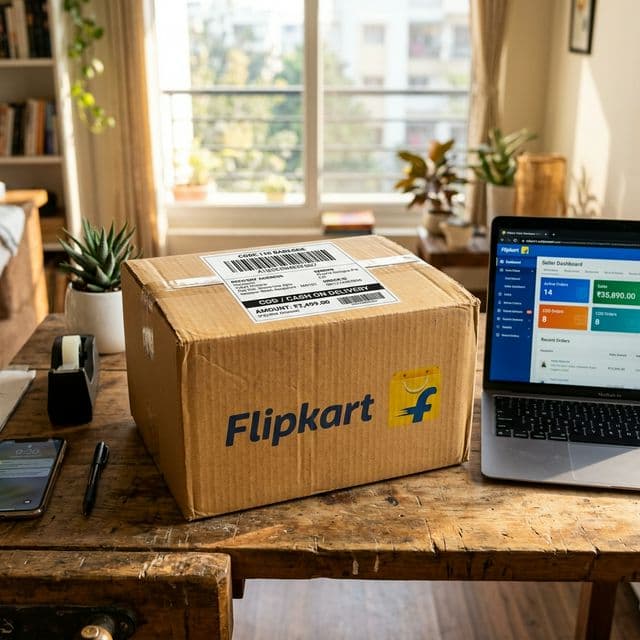
Flipkart uses a slightly different label system compared to Amazon and Meesho. When a customer places an order and you confirm it through Flipkart Seller Hub, the platform generates a shipping label that includes:
- Customer address (delivery details)
- Seller address (return/origin address)
- Flipkart logistics barcode (used by Ekart and other delivery partners)
- Order ID and AWB (Air Waybill) number
- Product details (basic item description and quantity)
- Payment method indicator (Prepaid/COD)
Understanding what each element on the label represents helps you troubleshoot when something doesn't print correctly.
How to Download Shipping Labels from Flipkart Seller Hub
Single Order Labels
- Log in to Flipkart Seller Hub (seller.flipkart.com)
- Go to Orders → Ready to Dispatch
- Find the order you want to ship
- Click Download Label or Print Manifest
- The PDF will download to your computer
Bulk Label Downloads
For sellers processing many orders:
- Go to Orders → Ready to Dispatch
- Select multiple orders using the checkboxes
- Click Bulk Actions → Download Labels
- A single PDF containing all selected labels will download
Important: Flipkart often generates labels in A4 format with multiple labels per page or with large white margins around a single label. This is not directly compatible with 4x6 thermal printers.
The Flipkart Label Format Challenge
Flipkart's label PDFs have unique characteristics that differ from Amazon and Meesho:
Layout Differences
- Flipkart labels include a separate return address section at the bottom
- The logistics barcode is typically larger than Amazon's
- COD amount (if applicable) is printed prominently
- The overall layout uses more vertical space
Why Standard Crop Methods Don't Work Well
Many sellers try to manually adjust Flipkart labels for 4x6 printing:
- Manual cropping in PDF editors: Time-consuming and inconsistent
- Changing printer settings: Works sometimes but varies by printer model
- Screenshot and print: Destroys barcode quality, leading to scanning failures
The most reliable method is using an automated label cropping tool that understands Flipkart's specific layout. Q Crop Label recognizes Flipkart's label structure and crops each label to the optimal 4x6 thermal format while preserving all critical elements.
Step-by-Step: Print Flipkart Labels on a 4x6 Thermal Printer
Method 1: Direct Thermal Format (If Available)
Some Flipkart label configurations allow you to select a thermal-friendly format:
- When downloading, check if there's a label format option
- Select 4x6 / Thermal if available
- Print directly at 100% scale
However, this option is not always available for all sellers or all logistics partners.
Method 2: Crop and Convert (Recommended)
For the standard A4 format that most sellers receive:
- Download the shipping label PDF from Flipkart Seller Hub
- Open Q Crop Label in your browser
- Upload the downloaded PDF
- The tool automatically detects Flipkart's label format and crops appropriately
- Download the converted 4x6 PDF
- Open in your PDF viewer and print at Actual Size / 100% on your thermal printer
This method works consistently regardless of how many labels are in the PDF, whether they are single or multi-page, and whether they are COD or prepaid orders.
Flipkart Label Printing Troubleshooting
Problem: Barcode Getting Cut Off at the Bottom
Cause: The Flipkart return address section extends below the crop boundary. Fix: When using Q Crop Label, the tool accounts for this extra section. If manually cropping, ensure you include the full height of the label including the return information.
Problem: QR Code Not Scanning
Cause: Print resolution is too low, or the QR code was scaled during printing. Fix: Always print at 100% scale. If the QR code is still small, check that your printer is set to 203 DPI or higher.
Problem: Label Prints with Wrong Orientation
Cause: Printer is set to Landscape instead of Portrait, or vice versa. Fix: Go to printer settings and toggle the orientation. Flipkart labels are typically Portrait format.
Problem: COD Amount Not Visible
Cause: The COD amount section is in a light gray color that doesn't print well on some thermal printers. Fix: Increase the print darkness/density in your thermal printer settings. A setting of 8-10 (on a 1-15 scale) usually works well.
Problem: Multiple Labels Printing on One Sticker
Cause: A4 PDF with multiple labels is being sent to a 4x6 printer without cropping. Fix: Always crop the PDF first to separate individual labels. Q Crop Label does this automatically for multi-label PDFs.
Best Practices for Flipkart Sellers
Before Dispatch Checklist
- Download labels immediately after confirming orders
- Crop labels to 4x6 format using a dedicated tool
- Print a test label and scan the barcode with your phone
- Verify the customer address matches the order in Seller Hub
- Apply the label on a flat surface of the package — not on edges or seams
Avoiding Returns and Complaints
- Clear, scannable barcodes = Fewer delivery failures
- Correct orientation = Courier can read the address quickly
- Complete labels (no cut-off information) = Fewer RTO incidents
Handling Manifest Issues
Sometimes Flipkart requires a manifest along with the shipping label:
- The manifest is a summary document listing all orders in a batch
- It must be printed on regular A4 paper (not thermal)
- Hand it to the courier pickup agent along with the packages
Ekart Logistics Specific Notes
Most Flipkart orders in India are shipped via Ekart (Flipkart's own logistics arm). Ekart's scanning systems have specific requirements:
- Barcodes must be at least 25mm tall for reliable scanning
- QR codes should be minimum 15mm x 15mm
- Labels should not be placed under transparent tape — the glare causes scanning failures
- If a label gets wet or damaged before pickup, reprint it immediately
Conclusion
Flipkart's shipping label system is well-designed but not optimized for thermal printers out of the box. By understanding the label format, using proper cropping tools, and following the printing best practices outlined in this guide, you can eliminate label-related dispatch issues and focus on growing your Flipkart business.
About Q Crop Label
Q Crop Label helps 100,000+ Indian e-commerce sellers optimize their shipping workflow. We write about thermal printing, label management, and practical tips to help Amazon, Meesho, and Flipkart sellers save time and money on every order.